The Statistics page provides concrete data regarding the number of forms that are passing through your office, and to allow this data to be narrowed down according to specific fields.
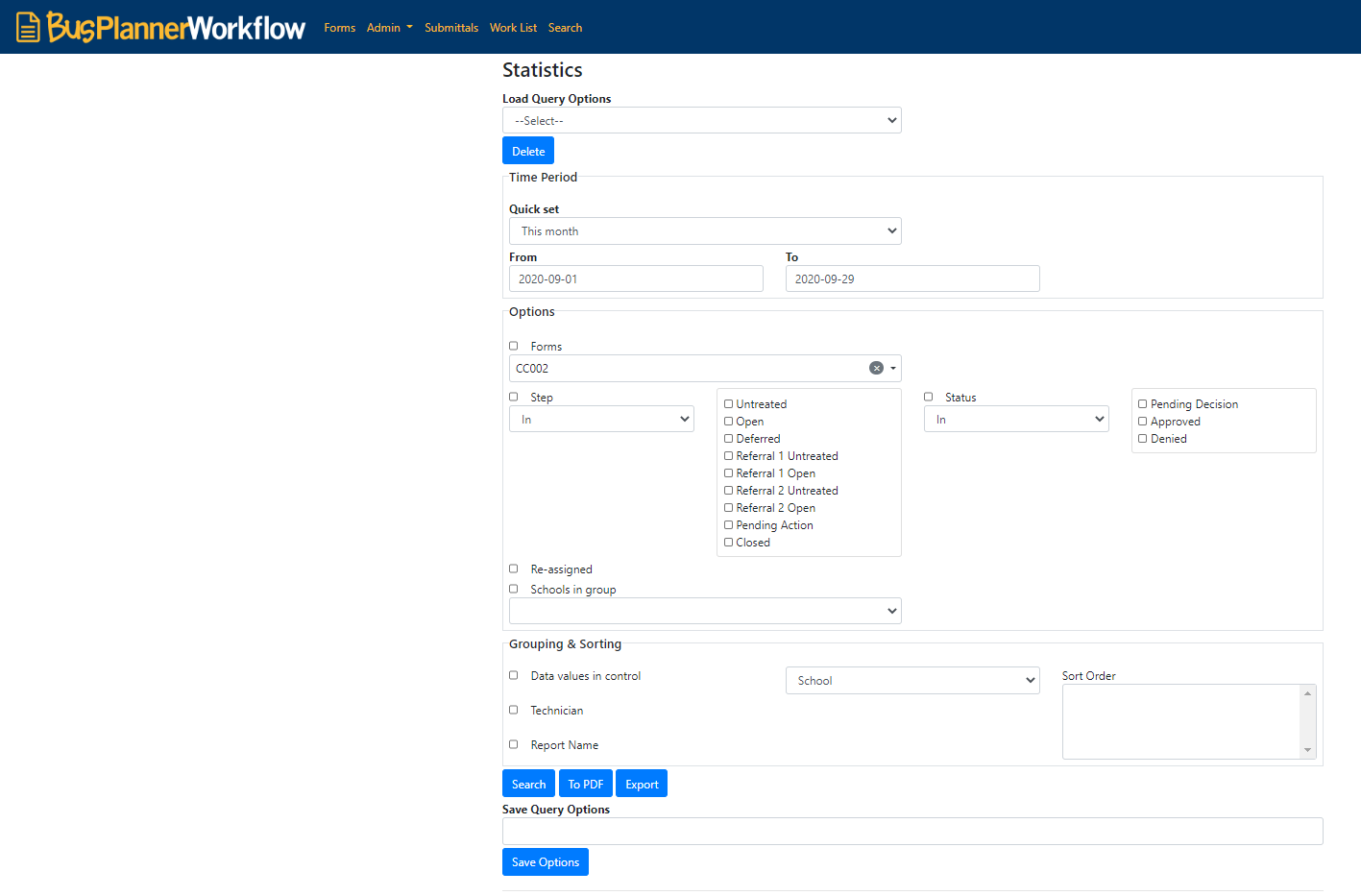
Step 1. From the Time Period, select the date range within which the form was submitted. Commonly selected date ranges are available within the dropdown menu; otherwise, a custom range can be set.

Note: If custom is selected you can select the dates in the From and To fields.

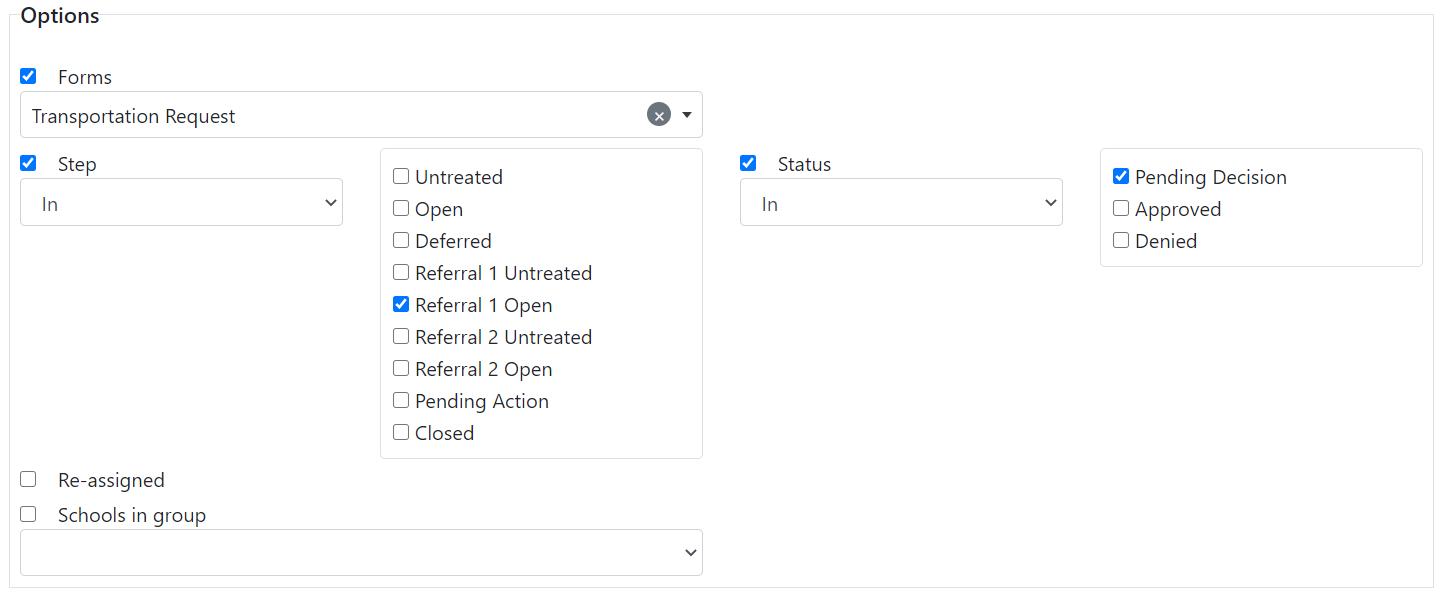
Step 2. From the Options, you can specify the type of submitted form to be searched, its current step/status, whether or not it has been reassigned, and/or the school group to which the submittal relates. For example, if I want statistics for forms that are being reviewed the first time and are waiting for a decision to be made, in the step section, I would select In Referral 1 Open, and in status, I would select In Pending Decision. Read more about each steps and status, in Letters to learn more.
Step 3. From Grouping & Sorting, results can be grouped by a field (School, StudentID, Board, or Request Type), Technician, and the name of the form. The Sort Order field allows the results to then be sorted by one or more of those fields.

Step 4 (optional). You can save this search query to be used again later through the Load Query Options. Give this query a name and click Save Options.

Step 5. Click Search, to query the results. In addition, you can save the results as a PDF by clicking on the button To PDF, if you want the results in a different format you can click on Export to export this information to a different file format.
