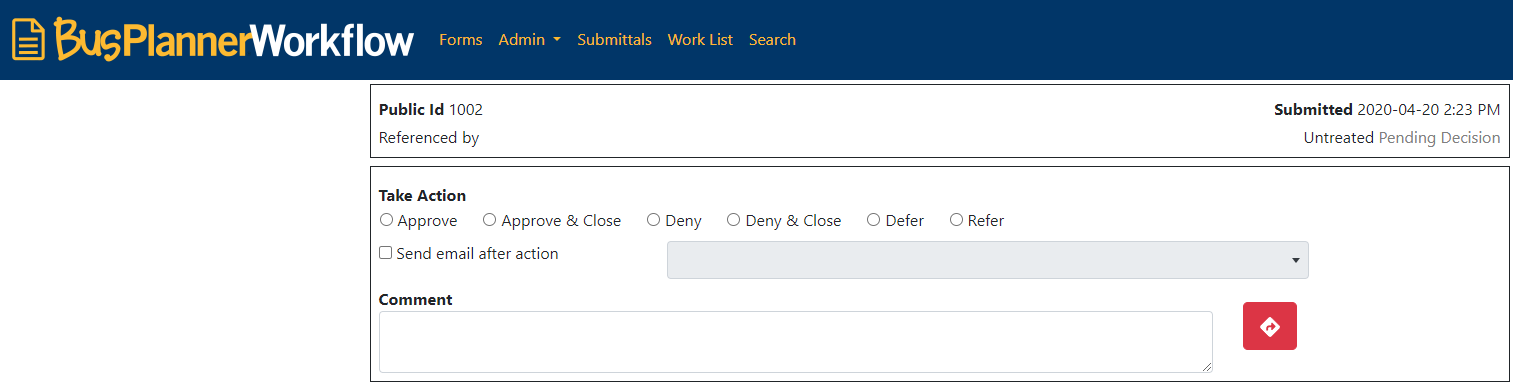
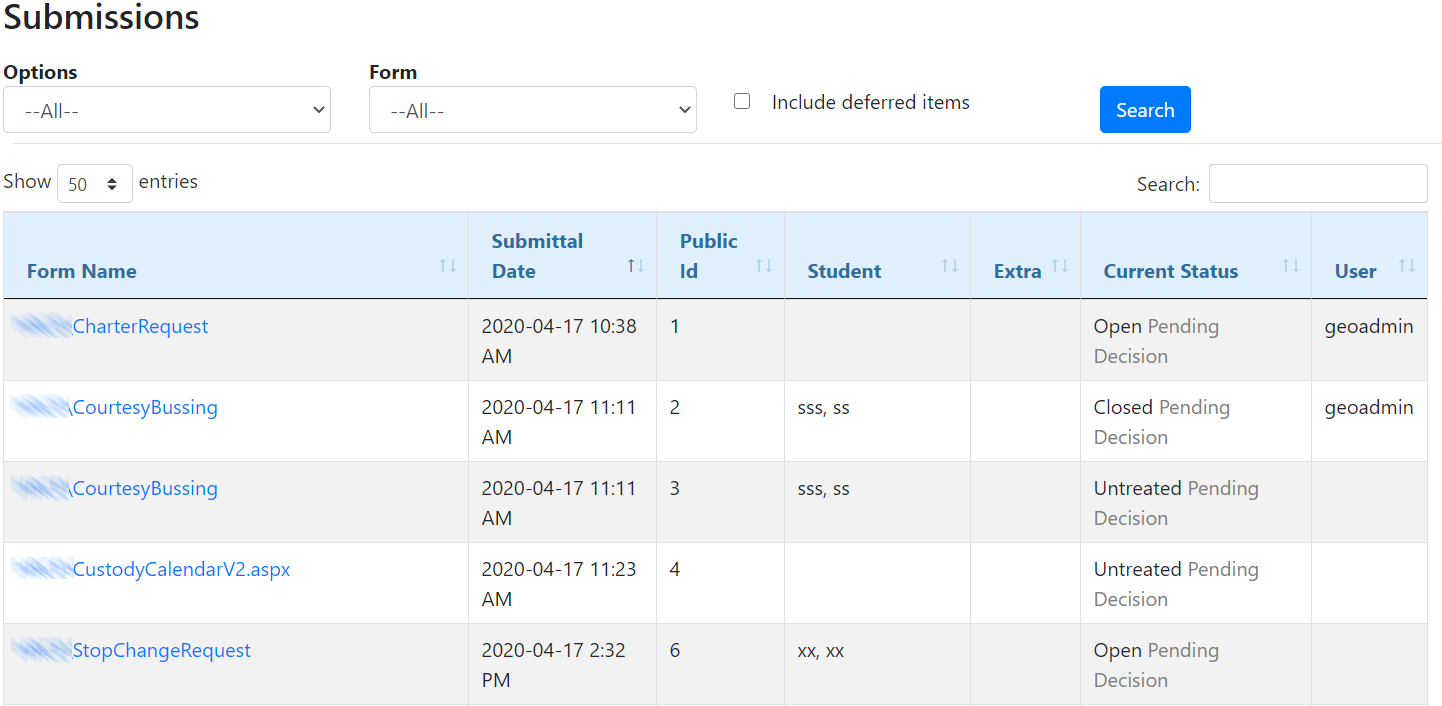
Once a form is submitted (either by a parent, operator, internal staff member, or another type of user), the individual records will either be accessible via the Submittals page or a technician’s Work List.
 Submission Details
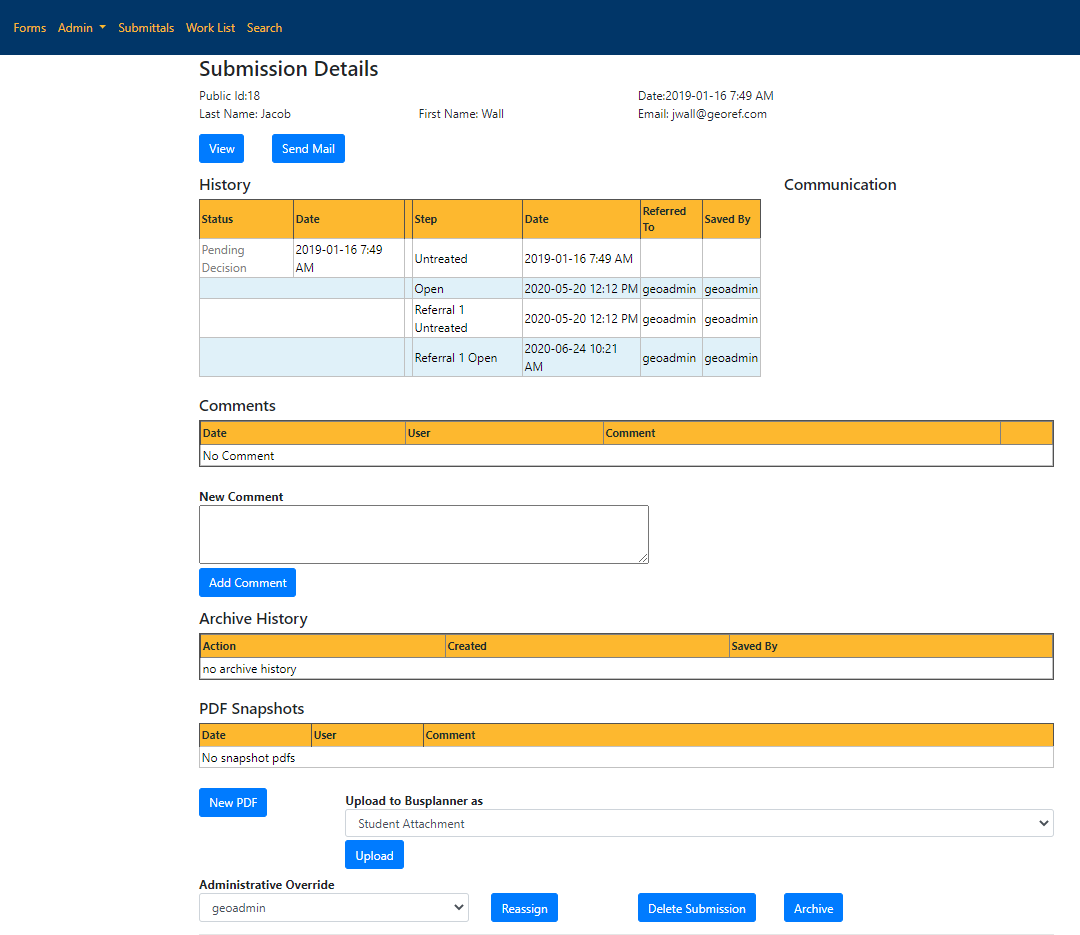
Click on the form name in the submittal to show the Submission Details page.
Click the View button to display the submittal as completed by the website user.
The Send Mail button allows the form to be emailed to the person who submitted it; a letter can be included with this email as well.
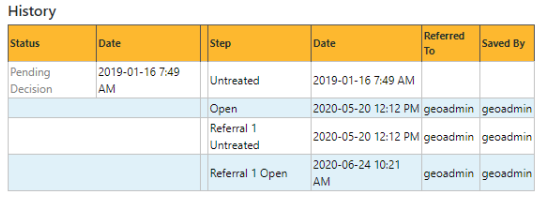
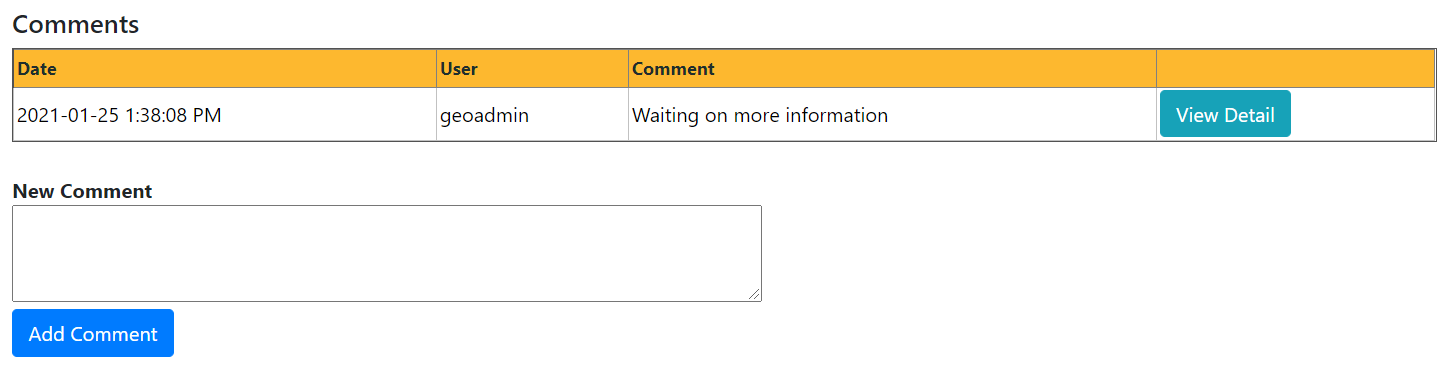
The History list all the steps/actions that have been applied to this submitted form. It also displays when this form was last edited as well as who was the technician that worked on the form. Any comments (including reassignments) that have been added since its creation can be added in the Comment section. You can use the comments to leave a note regarding the form or process. Note: Click on View Detail if the comment is too long to fit into the comment box. To add a comment, type your comments the new comment box then click Add Comment.
If the submission was archived or unarchived by a technicians it will show up in the archive history.
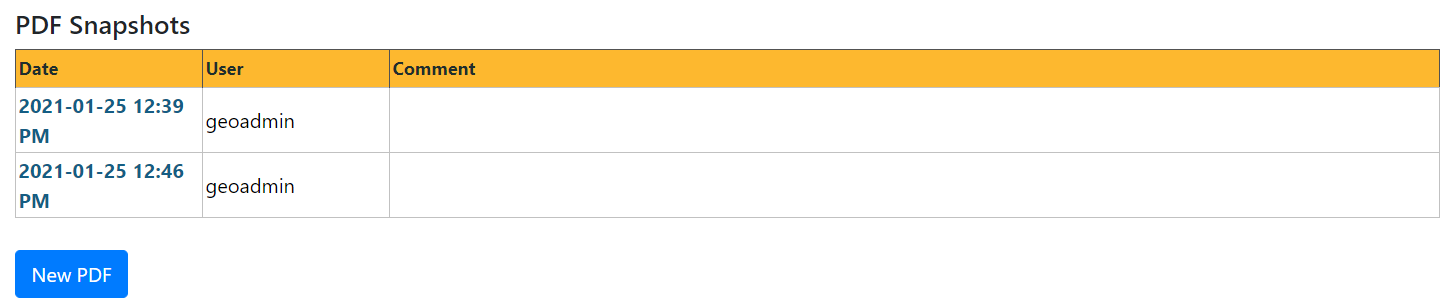
In the PDF Snapshots you can create PDFs of the submission prior to making more changes to the submission. To create a PDF Snapshot, click on New PDF. You can save a copy of the snapshot on to your computer by clicking on the date.
You can upload this submission to BusPlanner as an attachment by selecting the appropriate attachment format and clicking upload. There are 3 formats that you can choose from:
The Administrative Override buttons can be used to manually reassign the form to a different technician. Delete Submission will remove the submission, including all history form workflow all together. Archive the submittal (which will move it into a separate view on the Work List page). Archived forms are not removed from submittals. They not shown by default since the submittal list will default to active forms. They can still be accessed by changing the search settings.
|





Technician Option
Options for the technician can be seen below:
Users with access to the submittal can open it and either Approve the submittal, Deny it, Defer, or Refer it to another Workflow user. If a letter has not been assigned to the form at this Workflow stage, checking Send email after action will cause a copy of the letter to be sent to the submitter. If the technician picks a pre-made letter in the dropdown, the letter will get sent automatically when the action is taken. If the dropdown is left blank, then on the next page, the technician can pick from a list of pre-made letters and customize the contents. Once the submittal is approved or denied, it can then be closed – which will remove it from all work lists, but still keep it available in the Submittals section. Defer option: •The deferred items will start showing in the submittals and worklist the day before the 'Deferred to' date. •Workflow submittals can be Deferred when they are in the 'untreated' state. •It is not possible to Defer an submittal that has progressed beyond the open state (one has been referred, approved, etc). If you wish to defer it, go to Submittal details and delete the steps to revert it to an Open state, then Defer it. Notes: •The options to Approve & Close and to Deny & Close are designed to close the submittal faster. •All users that receive referrals must have a technician role in user manager BUT do not need to be affiliated with any school in workflow. Technicians can bring up their own work list to see any referrals they would have been sent. They have no access to submittals and do not receive any submittals other than those referred to them by transportation or workflow user. •The Workflow_TechniciansSeeAllSubmittals setting will allow any technician to see the submittals menu and see all submittals in that list. This setting is set as false by default. |