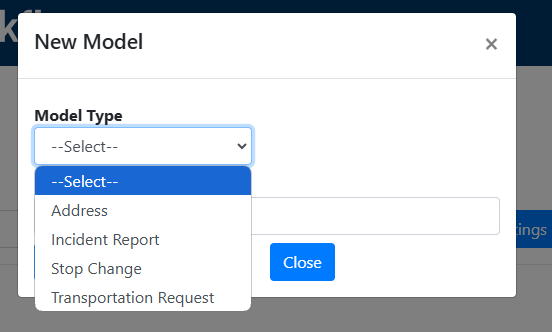
BusPlanner offers the users to use Workflow Models for the following forms.
•Address
•Incident Report
•Stop Change
•Transportation Request
Users will have to set up the model of the generic form. Then, add the model to the Forms.
 Setting up Generic Workflow Models
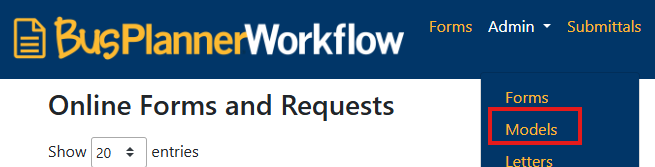
•Go to Admin > Models > Add New.
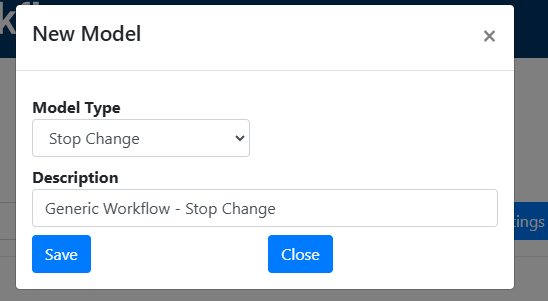
•Select the Model Type and enter the description Description and click Save.
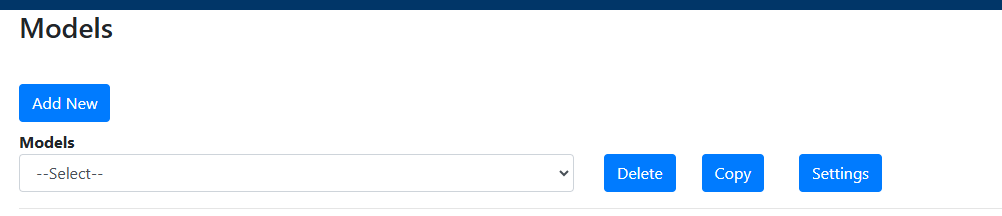
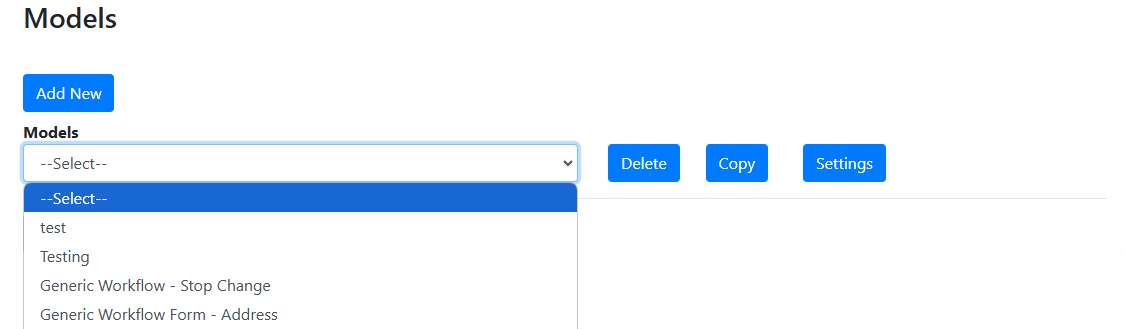
•Once the model has been saved, select the newly created model in the drop-down.
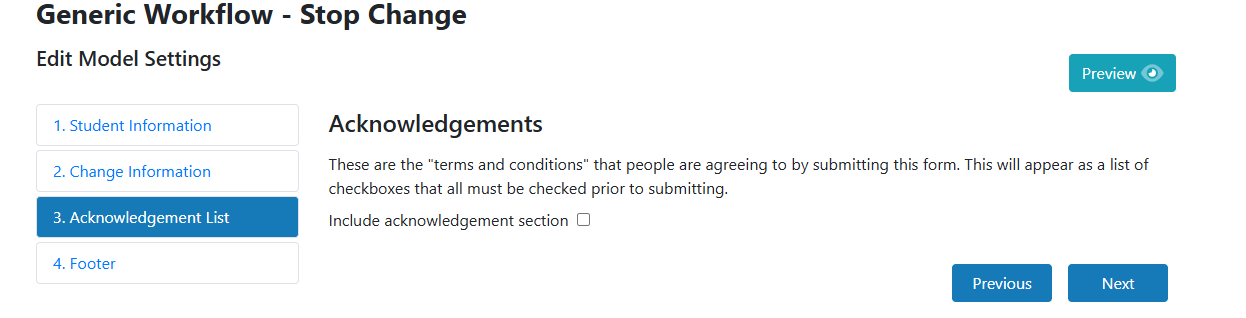
•Click on Settings to customize the model. •While customizing, each element of the model, for example, the Student Information would have to be saved.
•Once saved, click on Next. You can Preview how the changes appear to users using the Preview button on the top right. |
Adding the Model to Forms
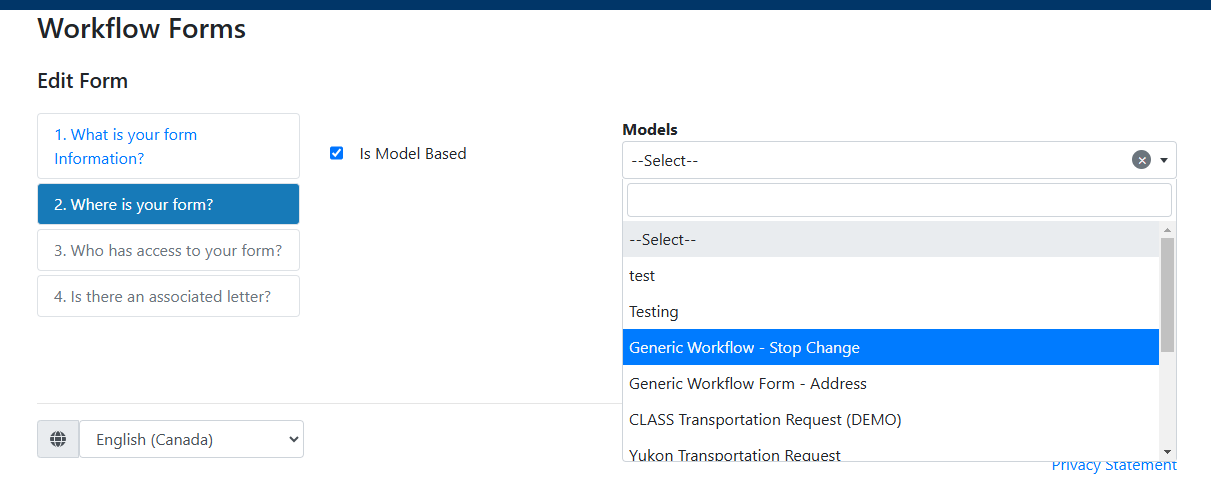
•Once the whole form is saved, go to Admin > Forms. •Click on Add. •Within the 'Where is your form?' section, check on 'Is Model Based' and select the model in the drop-down.
|