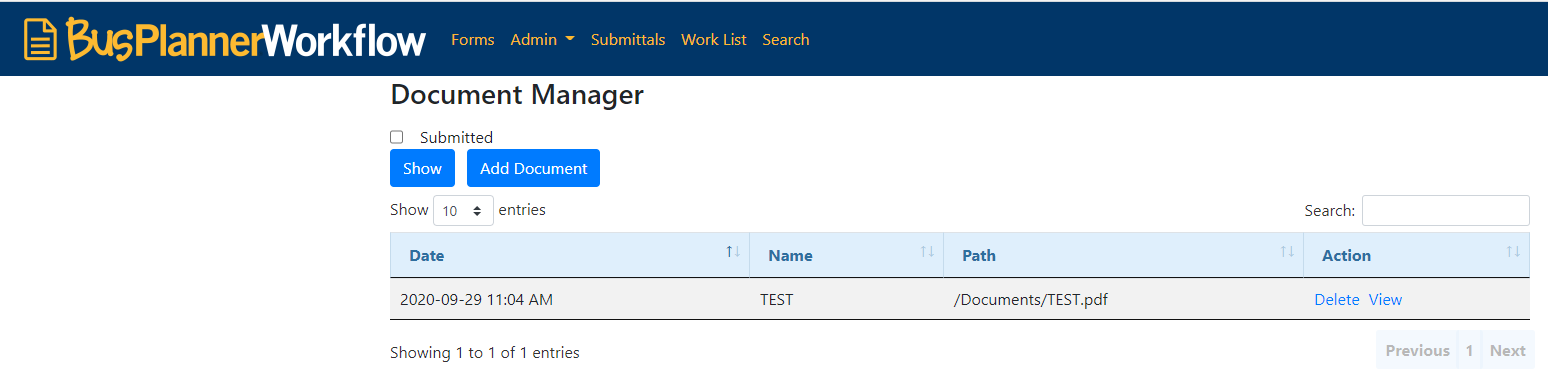
The Documents page provides a place to manage key materials for your office, such as policy documentation, standard letters, and others.

To add a document click on Add Document.
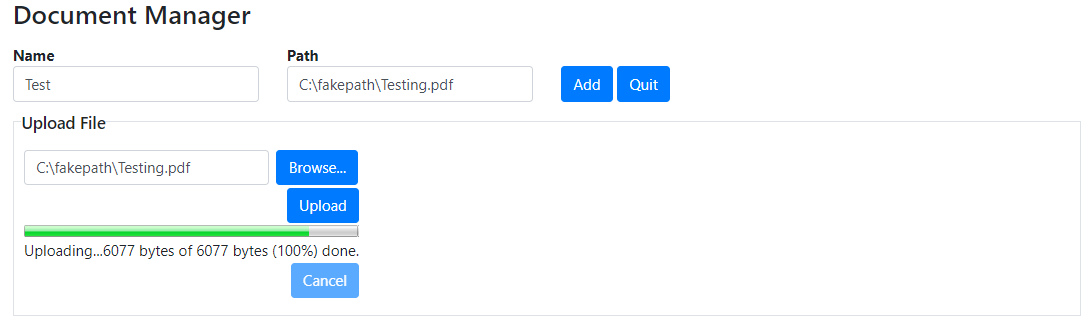
Click on Browse to locate and select the document then click Upload.
Give the Document a Name and the file Path of where the document is located then click Add. Documents added will appear in letters.
 Searching
To narrow down your search, enter a file name in the search bar and/or check submitted, then click Show to display all documents that fit your criteria. To view all documents, simply click Show.
Click Delete to remove a file from the Documents page, or View to display it in its default viewer (e.g. Microsoft Word for .doc files). |