As an admin, this is where you will have access to edit your Workflow forms. Each of these values can be edited by clicking on the form entry in this section.
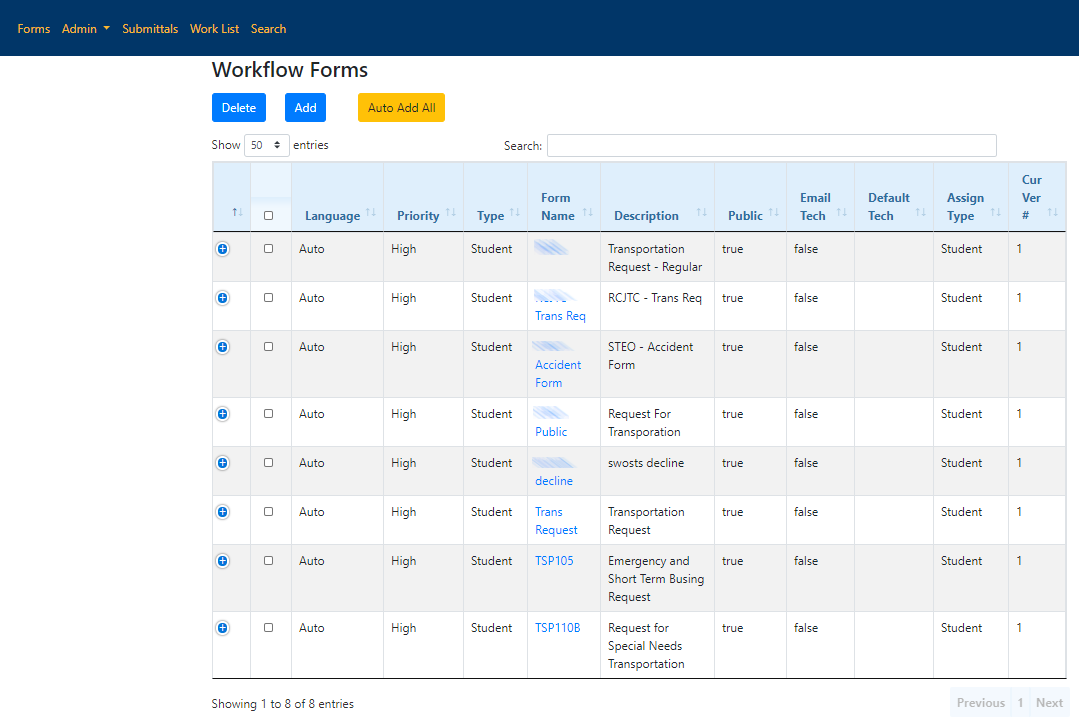
Language: The language in which the form is written.
Priority: In the future, this will affect how submittals are ordered in the Submittals and Work List sections. Not used at this time.
Form Type: The nature of the information contained within the form. Can be set to Student, Operator, or Personnel.
Form Name: The internal name of the form.
Description: The public description of the form.
Public: Controls whether or not the form is accessible within the BusPlanner Web Parent Portal, or to other site visitors not logged in to BusPlanner Web.
Default Tech: The technician to whom submitted forms will be assigned by default. If left blank, submittals will be assigned based on the form’s Assign Type.
Assign Type:
How the form is auto-assigned when submitted:
•Not assigned to a particular person, and therefore on every technician’s worklist.
•Automatically assigned to a technician based on the school (i.e. if a student submits a form, and a particular technician is responsible for their school).
•This form is assigned to a selected technician at the time of being filled out. The technician assigned to the form will automatically receive this form.
•This form is assigned to school users regardless of role. This option will assign a form to the first school user on the list for the selected school.
Below the dropdown, there is a fifth option - Assign to this technician regardless of school (applies only to Form Type: Student). With this option, the technician will only be automatically assigned to the form if:
•Form Type is set to Student.
•Assign Type is set to The form is automatically assigned to a technician....
Current Version Number (Cur. Ver. #): The current iteration of the form. The Create New Version button (on the individual form pages) can be used to add a new version of the form. This always needs to be the most current version. If a form change request is made and a new version is released this is where you will go to update to the latest version.
Create Date: The date the current version of the form was created.
Note: Within the forms themselves, the Roles with access to this form can be set. Whenever a BusPlanner Web user type is added to a form, users of that type (e.g. “Operator”, “SchoolAdmin”) will be able to view and submit that form.